If you pay rent, professional fees, commission or contract charges and deduct TDS (Tax Deducted at Source) on them, you report those deductions every quarter in Form 140. It replaced Form 26Q from Tax Year 2026-27.
Until last year, filing meant preparing the return in a utility, validating it into an FVU file and uploading it. That’s no longer necessary. TRACES (TDS Reconciliation Analysis and Correction Enabling System) now lets you prepare and file Form 140 entirely online, and it pulls in the challans you’ve already paid.
The Q2 return, covering July to September 2026, is due on 31 October 2026. Here’s the full flow, from login to e-verification.
Before you start, keep these ready:
- Every Q2 challan paid (TDS for September is due by 7 October)
- Your TRACES deductor login (User ID and password linked to your TAN)
- A way to e-verify: Aadhaar OTP on the mobile number linked to Aadhaar, or a DSC (Digital Signature Certificate)
- Each deductee’s PAN, name, section code, payment date, amount paid and TDS deducted
Open Form 140 for Tax Year 2026-27, Q2
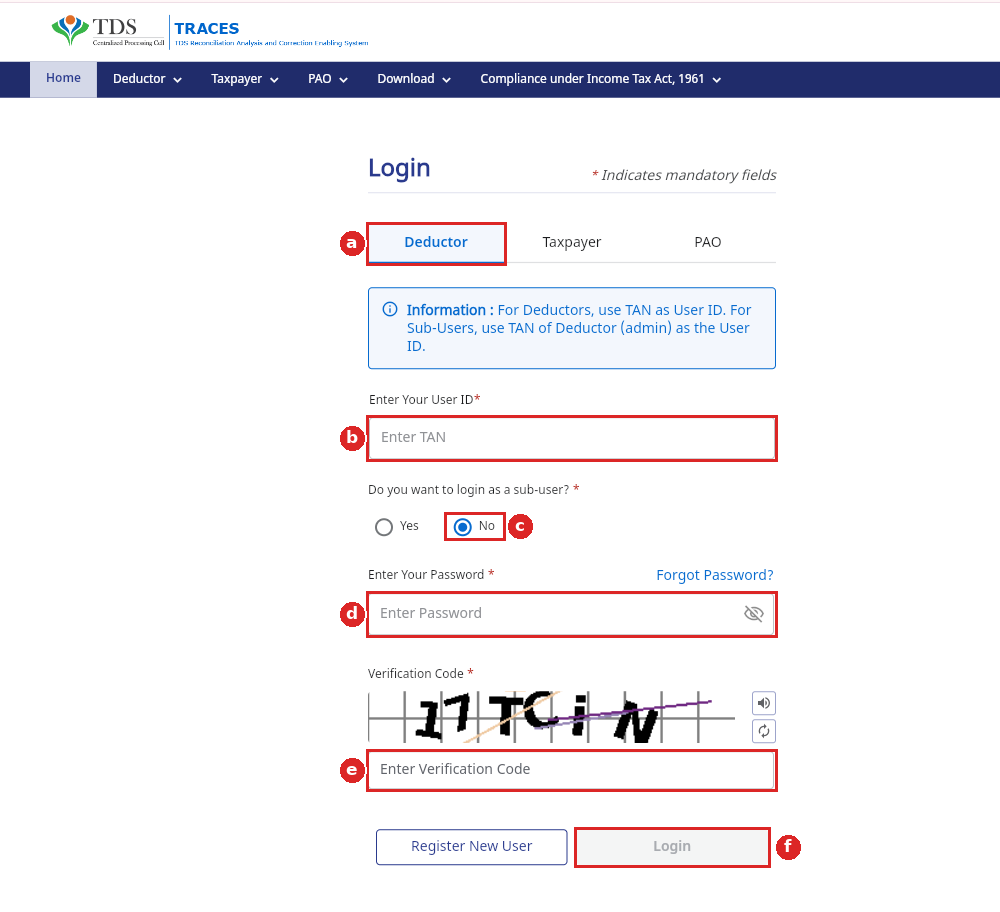
Step 1: Go to https://traces.tdscpc.gov.in/ and log in as a deductor with your TAN and password.
Step 2: From the menu bar, click e-file & View (a) and then File TDS/TCS Forms & Statements (b).
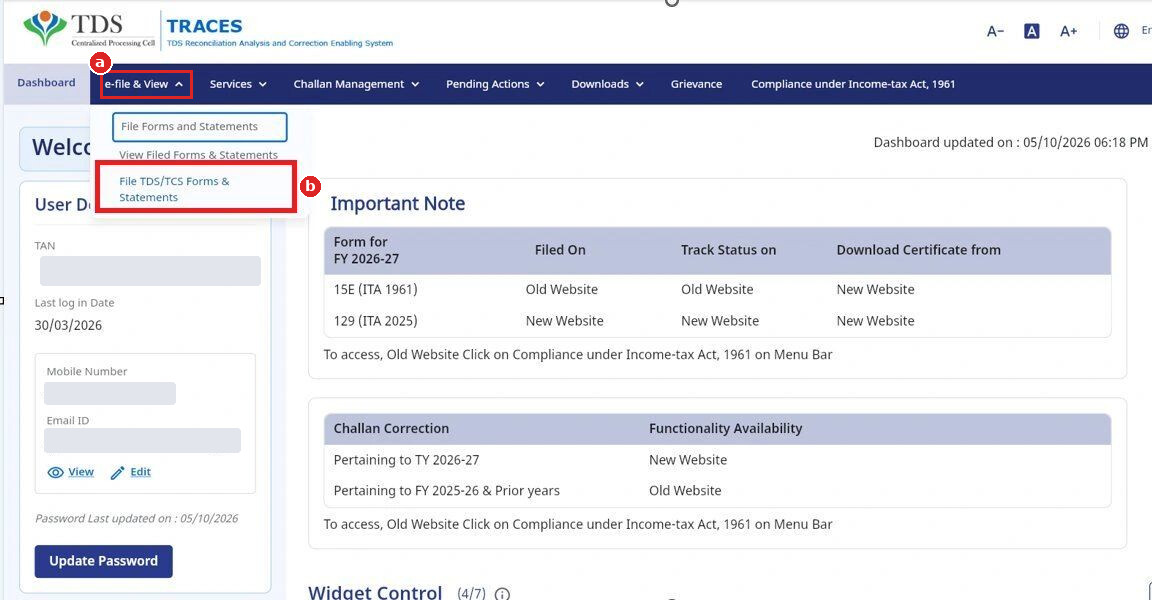
Don’t go through Compliance under Income-tax Act, 1961. That opens the old website, which only handles FY 2025-26 and earlier years.
Step 3: On the Form No. 140 card, click File Now (a). Then select:
- Tax Year: 2026-27 (b)
- Quarter: Q2 (c)
- Filing Type: Regular (d)
- How do you want to file your TDS statement?: Prepare & File Online (e)
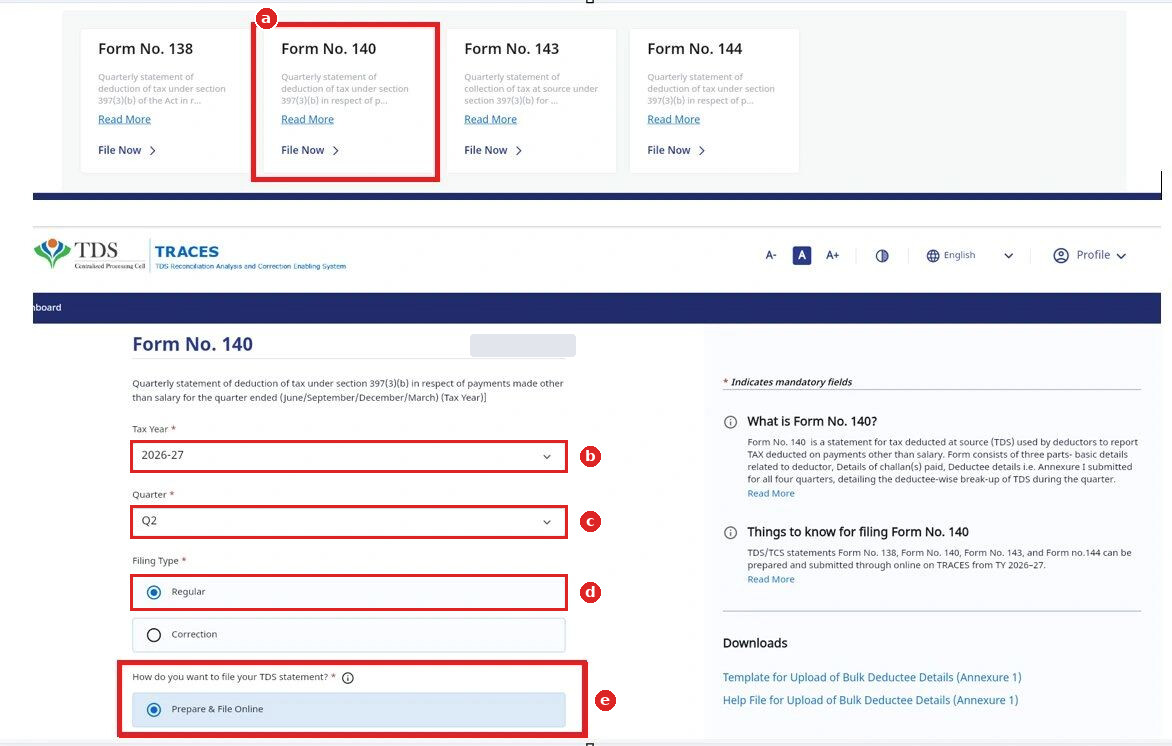
The panel on the right has the CSV template for bulk deductee upload. You’ll need it in Step 6 if you have many deductees.
Import your Q2 challans instead of typing them in
Step 4: Under Challan & Deductee Details, open Challan Details and click View & Import More Unconsumed Challans/BINs (a). Choose Challan(s) (Minor Head Code - 200/400) (b), click View (c), then select your Q2 challans and import them.
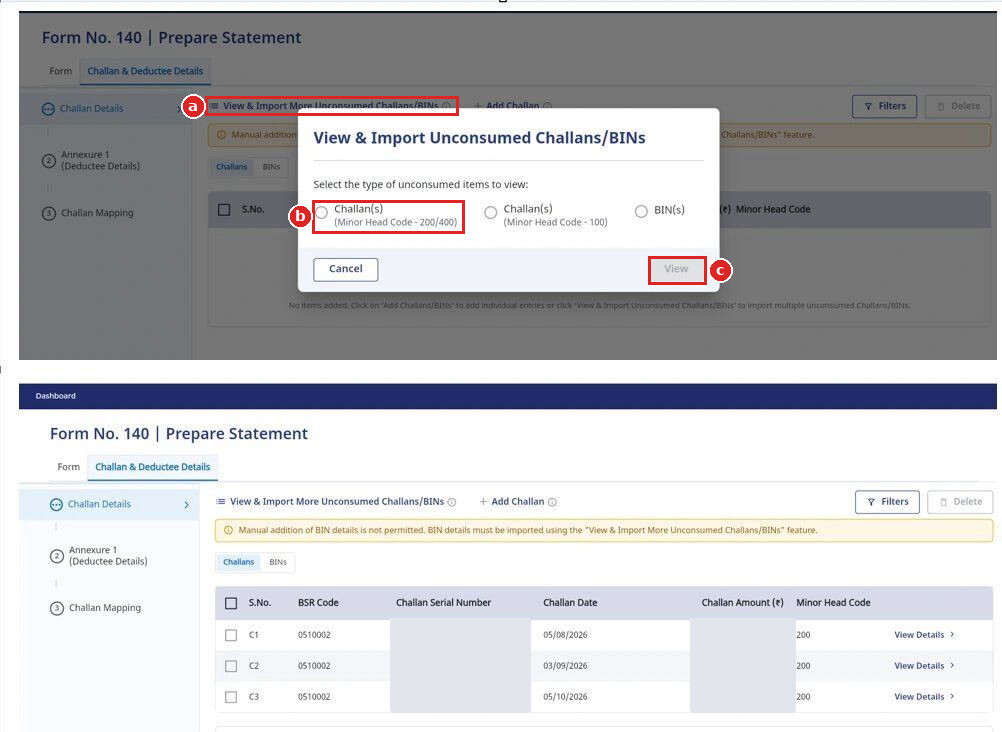
Minor head 200 is the code your regular TDS payments carry. Importing avoids the most common mismatch in TDS returns: a BSR code, challan serial number or date typed wrong. You can add a challan manually with Add Challan, but BINs (Book Identification Numbers, used by government deductors) can only be imported.
In the example used throughout this thread, the deductor paid Q2 TDS in three challans, dated 5 August, 3 September and 5 October 2026. All three appear as C1, C2 and C3.
Add each deductee in Annexure 1, one by one or by CSV
Step 5: Open Annexure 1 (Deductee Details). If you have a few deductees, add them one at a time. If you have dozens, use the bulk route instead:
- Click Add Bulk Deductee Details (a)
- Click Download Template (b) and fill it in (the Help File explains each column)
- Click Browse File (c) to pick the filled CSV (up to 5 MB)
- Click Upload (d)
Step 6: For each deductee row, fill in the PAN, name, amount paid or credited, and TDS deducted. Then fill the fields that most often trip people up:
- Section Code (e): the 4-digit code for the payment type
- Date of Payment/Credit (f): the date you paid or credited the deductee, whichever was earlier
- Whether Total Amount of Tax Deducted has been Deposited (g): select Y once the challan is paid
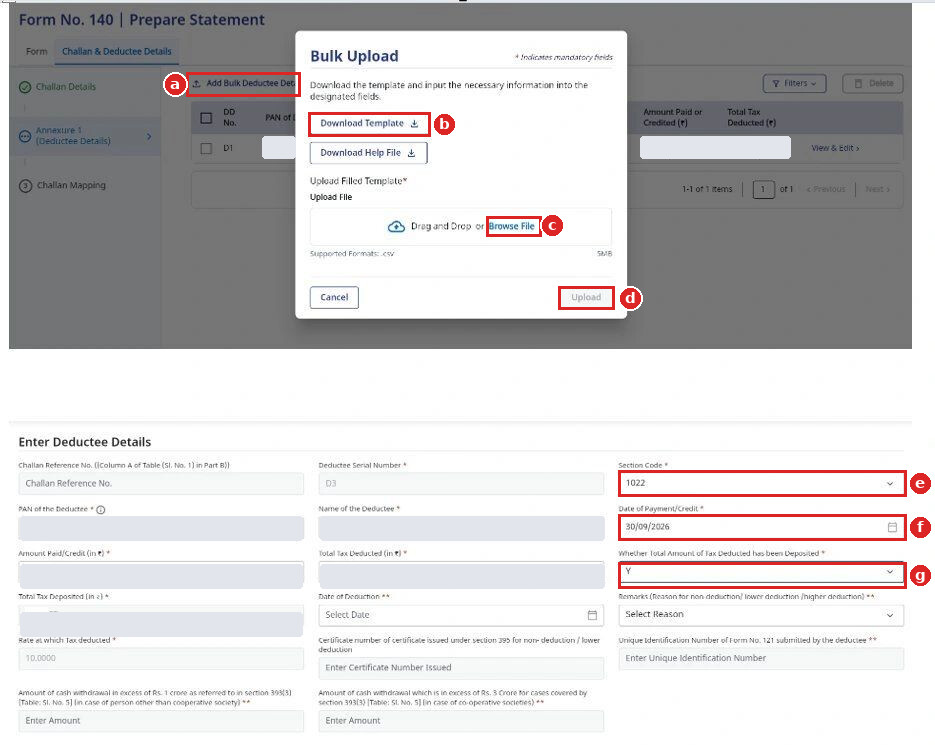
Fields marked ** are needed only in specific cases. Date of Deduction and Remarks apply if you deducted at a lower rate, a higher rate or not at all. The certificate number under section 395 applies if the deductee holds a lower or nil deduction certificate. The Unique Identification Number of Form No. 121 applies if the deductee submitted that form. The rate of deduction fills in on its own.
Map every deductee to a challan, then validate and e-verify
Step 7: Open Challan Mapping and click Challan Mapping against the first challan (a). Tick the deductee rows paid out of that challan (b) and watch the Difference Amount (B-C) (c).
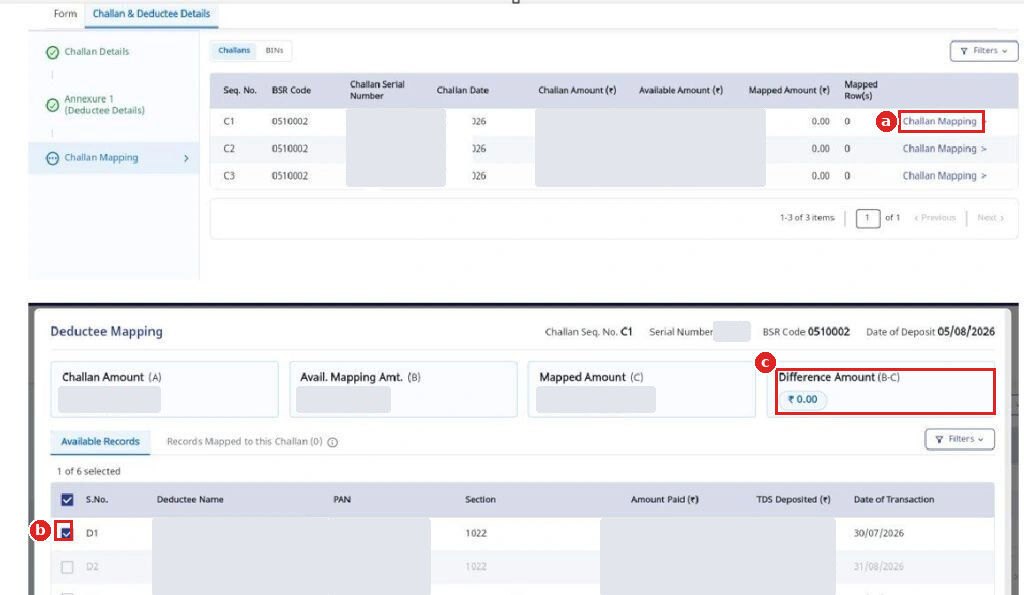
If the challan covered only these deductions, the difference should come to ₹0. A balance left over usually means you’ve missed a row, or the amount on a row doesn’t match what you deposited. Repeat for every challan. In our example, six deductee rows were spread across the three challans.
Step 8: Click Validate Statement (a) and then Confirm (b). Once the statement passes, you’ll see a success message (c) and a summary of the file.
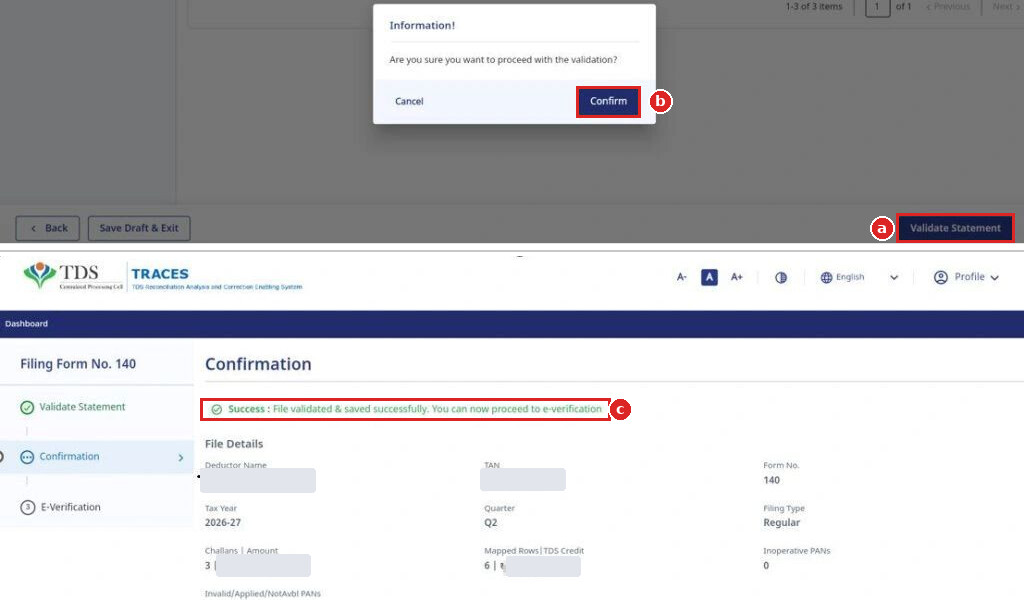
Read the summary before moving on. The number of challans and their total, the mapped rows and TDS credit should all match your books. Inoperative PANs and Invalid PANs should read 0. If something’s off, go Back and fix it now. Correcting a filed statement takes far longer.
If you need to stop partway, Save Draft & Exit keeps your work.
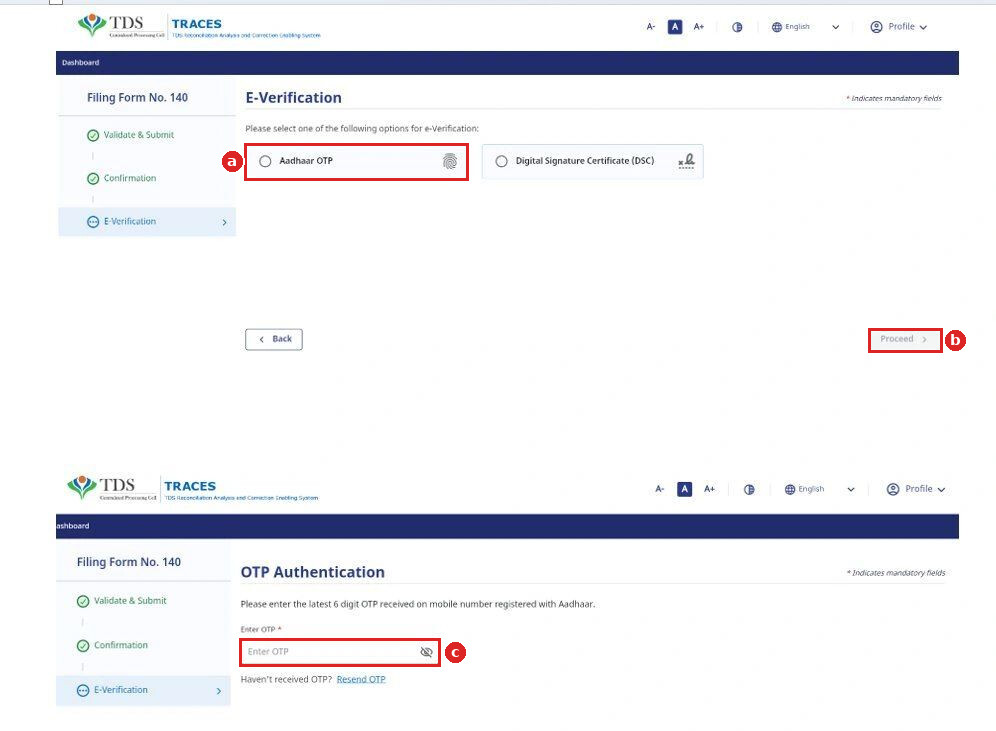
Step 9: On the E-Verification screen, select Aadhaar OTP (a) or DSC and click Proceed (b). For Aadhaar OTP, enter the 6-digit OTP sent to the mobile number linked to Aadhaar (c) and submit.
[Screenshot needed: acknowledgement screen after successful e-verification]
Once e-verified, Form 140 for Q2 is filed. Keep the acknowledgement for your records.
File by 31 October 2026 to avoid the ₹200-a-day fee
Miss the deadline and section 427 of the Income Tax Act, 2025 charges ₹200 for every day of delay, capped at the TDS amount for the quarter. You also have to pay this fee before TRACES will accept the late statement.
- Deposit September’s TDS first, then file. A missing challan is the most common reason the online form looks incomplete.
- Got more than a handful of deductees? Use the CSV template rather than typing each row.
- Check the Confirmation summary against your books before you e-verify, not after.
Questions? Drop them below.